Share this page


Team Roadmap
This section describes how the Roadmap tab can help you to monitor your team.
Team utilization (calculated in the unit of hours)
The utilization number tells to what extent your team's capacity is utilized. If it is more than 100%, it is in red, indicating over-loaded.
It gives you the hint whether you should consider shaking some assignments off a team and migrating them to some under-allocated teams.
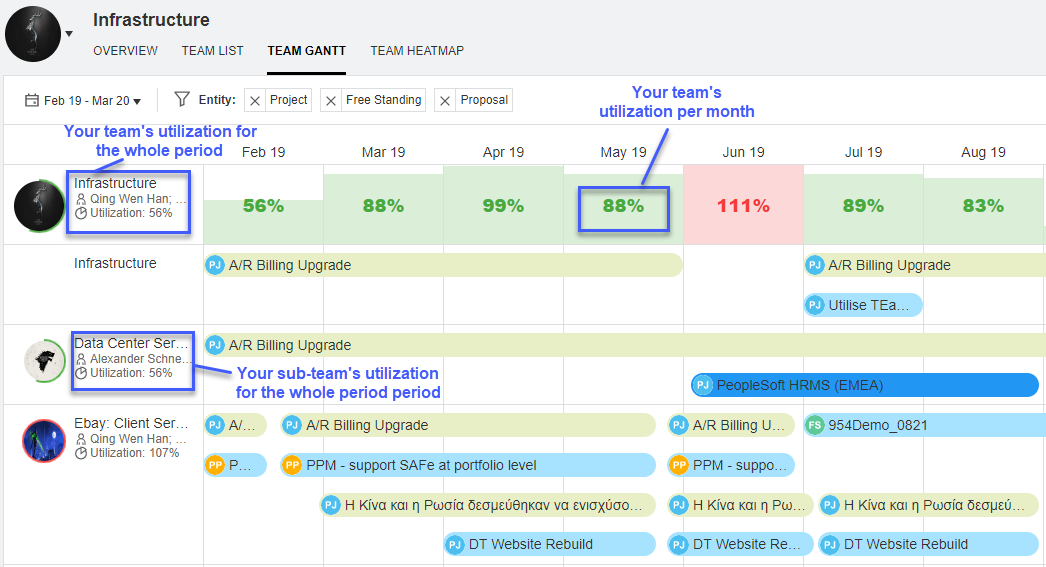

Team assignment
The Roadmap tab displays your team's assignments and promised allocations (available in 25.2 and later).
To view team assignments:
- Specify a period.
-
Locate the team or promise line you want to view. Assigned entities for the selected period are displayed as pipelines.
- Hover over the pipeline of an entity to view the details.
- Check Assigned Duration to see the assignment period.
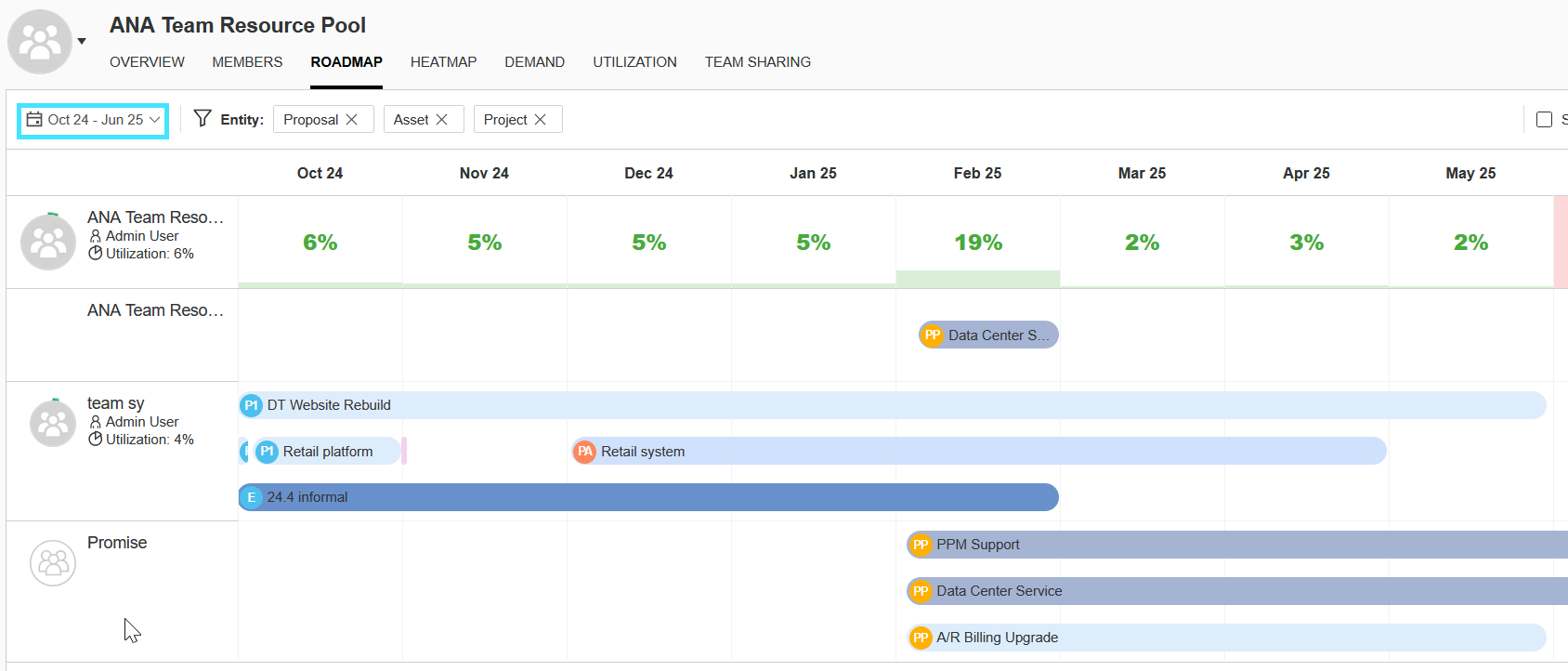
To view team assignments to one type of entities:
-
Click the filter button and select a certain entity type.
The selected entity types are shown as tags.
-
Remove a tag to hide the team assignments for that entity type.
Note: The filter does not impact the team utilization data.
Which strategic theme your team is working for
If an initiatives is aligned with a portfolio strategic theme, the initiative pipeline is highlighted in the strategic theme color.
From the pipeline colors, you can quickly tell which strategic themes your team is working for, and whether you are putting your team on the right work.
If a team is assigned to an initiative that is not aligned with any strategic theme, it is the team that you might consider removing or reducing assignment when balancing assignments among sub-teams.